Friday, 4 March 2022

10 Incredible Examples of User-Generated Content That Are Guaranteed to Succeed

10 Incredible Examples of User-Generated Content That Are Guaranteed to Succeed

Do you know what drives sales?

Word of mouth marketing.

Word-of-mouth marketing is free advertising and comes in the form of glowing recommendations from the people you trust the most. Word-of-mouth’s online counterpart is user-generated content (UCG).

Not sure what UGC is or how to incorporate it into a successful marketing strategy?

You’re in the right place.

Below, we’ll explore the best user-generated content examples from the world’s biggest brands and why each one works so well.

By the time you’re done reading this post, you’ll have dozens of actionable ideas for your UGC strategy and a clear idea of how to use social proof to boost your sales, increase trust, and create a hyper-engaged community of loyal customers.

What Is User-Generated Content? 

User-generated content is any combination of photos, videos, and text created by people rather than a brand. 

From product reviews on sites like Yelp to posts on social media, UGC generates powerful social proof that can lead to more sales and increase trust without any direct involvement from the brand.

What Are the Benefits of User-Generated Content? 

What’s the deal with UGC? What makes it one of the best marketing tools at your disposal?

It’s buying power.

A recent report found: 

  • 56 percent of consumers are influenced by images and videos from social media when shopping online.
  • 79 percent say UGC highly impacts their purchasing decisions, while influencer content has only a nine percent sway over their wallets.
  • 80 percent of consumers are likely to purchase a product online if its website features videos and photos from real customers.

However, the benefits of user-generated content don’t stop at your bottom line.

By incorporating UGC into your marketing mix, you can show customers your brand is authentic and lives up to its promises. This inspires brand trust and loyalty, especially when purchasing online, and it’s impossible to inspect a product physically.

Finally, user-generated content is cost-effective. With your audience helping out with content creation, your team has more time to focus on other tasks that move the needle, and you have more room in your marketing budget.

All you need to do is request permission to use someone’s photo or video, and you’ve got a bank of content ready to go for your website, social media platforms, ads, and email marketing.

User-Generated Content Example 1: Monsoon

UGC content isn’t only for your Instagram feed.

When used strategically, it can help you sell more while paying less.

Case in point: fashion retailer Monsoon.

The brand asked its followers to share photos featuring their products with the hashtag #MyMonsoon.

Then, the brand pulled these posts into on-site galleries, allowing customers to shop the looks.

Since introducing this feature, Monsoon reported a 29 percent increase in browsing time, an 18 percent reduction in bounce rates, and visitors exploring more products beyond the landing page.

Why does this type of UGC perform so well for online retailers?

When you’re shopping virtually, it’s hard to understand how a product will look on you and in your life. With user-generated content, you can quickly see how products look on real people, not models, and how things look outside of studio lighting.

User-Generated Content Example - Monsoon

If you want to try this out, first create a hashtag for the campaign. Make sure the hashtag isn’t so complicated that users are likely to make typos when they use it, and ensure it’s easy to remember. Don’t use a hashtag that has been used before so it’s easier to find the user-generated content examples from your audience.

Create and share the hashtag and explain to users that they should use the hashtag when they wear or use your products. Consider doing a giveaway for users that tag you using the hashtag.

Finally, share the best of the UCG examples on your own social channels.

User-Generated Content Example 2: Apple

The number one thing holding brands back from using UGC? Negative feedback.

While it’s inevitable someone, somewhere, will not like you, it’s not the end of the world. In fact, you can use UGC to change the tides in your favor and create a stronger and more loyal fan base than ever before.

Take Apple as an example.

A few years ago, customers complained about the below-average camera capabilities for iPhones, especially low light photos.

To combat the onslaught of negative reviews, Apple launched its #ShotOnIphone campaign.

The goal? Use user-generated content to regain trust, improve positive brand sentiment, and awareness.

The campaign encouraged iPhone users to share their photos online and use the hashtag to get their shots featured on Apple’s Instagram page.

With 24,093,156 posts featuring the hashtag, Apple managed to regain the market’s trust, build a strong online community, and use UGC to show off the photographic capabilities of an iPhone.

User-Generated Content Example - Apple

To try this strategy, monitor what people are saying about your brand. If you see constructive feedback about something you can disprove or (solve!), ask users to showcase themselves using your products in a way that disproves the flack or shows your audience you’ve solved the problem.

User-Generated Content Example 3: GoPro

UGC is a great way to appeal to people’s vanity.

Recognition is one of Maslow’s hierarchy of needs, falling under esteem. By capitalizing on this with your UGC strategy, you can ensure a nearly endless stream of ad content, like GoPro.

The action-camera brand uses this strategy with its photo of the day competition. Every day the brand posts the best user-submitted photo.

With an audience of 18.8 million, the competition creates long-term engagement. GoPro customers want to get a feature and will create top-notch content to snag a spot.

For the company, it’s a never-ending supply of beautiful images at almost zero cost.

User-Generated Content Example - GoPro

User-Generated Content Example 4: Doritos

Sometimes all you need to boost your engagement is a dash of creativity and humor.

When Doritos launched its Doritos Legions of Creator’s website, it encouraged users to create and share branded images and videos. 

The best part? Creators can win prize money. 

With different design challenges, the brand taps into the creative power of its audience while generating thousands of unique, evergreen, and high-quality user-generated content pieces.

Some briefs require users to create memes, design chip packets, or create delicious Doritos recipes. The campaign increases brand awareness and creates an opportunity for consumers to feel a sense of community and a strong connection to the brand.

User-Generated Content Example - Doritos

User-Generated Content Example 5: REI

Your UGC doesn’t need to feature your products. Stand out from everyone else in your industry and use your brand values to make a statement.

A few years ago, outdoor retailer REI launched an anti-Black Friday UGC campaign. Shutting down its stores nationwide, the brand encouraged its customers to swap the shopping hysteria for time outside.

Using the hashtag #OptOutside, users shared photos of themselves in nature, and the idea spread like wildfire. 

Within 24 hours, the brand’s social media impressions went up by 7000 percent, and 1.4 million people spent Black Friday outdoors.

User-Generated Content Example - REI

To try this out, think about your brand’s values. Then brainstorm real ways people can showcase your values out in the real world, and share them online.

User-Generated Content Example 6: Parachute

Repurposing content is one of my top digital marketing hacks. It saves you time, money, and increases the lifespan of a single image or video.

When it comes to UGC, you need to think beyond your Instagram grid feed like bedding and bath brand Parachute.

Using the hashtag #MyParachuteHome, the brand encourages consumers to show off the products in their homes. Then Parachute repurposes the photos into promotional content for emails, ads, and insert cards.

When you buy a Parachute product, you’ll get a card featuring UGC showing you how other buyers have styled it in their homes. It inspires the consumer and encourages them to show off their interior design flair.

When creating your UGC campaign, think about the consumer journey and how you can create a sharable moment that’s unique to your brand.

Example of User-Generated Content - Parachute

User-Generated Content Example 7: Aerie

With a brand identity focusing on real women and inclusivity, Aerie uses this to create UGC and an impact simultaneously.

Pledging to stop retouching swimsuit photos, the brand encourages users to do the same. For every unedited photo posted under the hashtag #AerieReal, the brand donates $1 to the National Eating Disorders Association.

User-Generated Content Example - Aerie

Not only does the campaign allow consumers to see what the products look like on real women, but it creates a community around body positivity and making the world a better place.

With 64 percent of consumers demanding brands take a stance on social issues, incorporating your beliefs into UGC is a powerful way to build brand loyalty, engagement, and awareness.

User-Generated Content Example 8: Glossier

Twitter UGC doesn’t only belong on Twitter.

For a powerful campaign, mix and match your content like Glossier.

The beauty brand drives engagement and community growth by sharing UGC photos, reviews, and tweets across its Instagram page.

One of the best examples is using a five-star review of Glossier’s solid perfume to announce the product’s comeback. It creates social proof, builds hype for the restock, and almost guarantees sales. 

User-Generated Content Example - Glossier

Another way Glossier incorporates reviews into its content is by reposting quotes in the caption. Instead of posting the user’s full review, the brand selected a highlight and combined it with its own brand messaging.

The result? Backing up its claims with the words of loyal customers while giving their followers a chance to step into the spotlight.

Example of User-Generated Content - Glossier

User-Generated Content Example 9: Adobe

It’s easy to show what a physical product will look like in your life, but what if you’re running a service-based business? How do you get UGC from a product that isn’t physical? 

That’s a challenge Adobe tackled with its hashtag #MadeWithPhotoshop. 

The campaign’s goal is to show potential customers and current users the capabilities of the software while showing off the user’s creative talents.

To date, the hashtag has been used 85,570 times, and the top submissions are used on the brand’s official Photoshop page.

By giving customers a clear idea of the kind of results they can expect, it’s a much easier sell. The incredible Photoshop submissions speak for themselves and encourage the community to take part and improve their skills.

For your next UGC, find a way to tempt your customers to show off their results. You’ll open up your community and walk away with powerful customer testimonials that prove your product or service works.

User-Generated Content Example - Adobe

User-Generated Content Example 10: Starbucks

What’s one of the best ways to get user-generated content? Hosting a competition.

A couple of years ago, Starbucks launched the #RedCupContest. The coffee brand came up with a competition to promote its holiday-themed beverages and new red cups.

Coffee drinkers were encouraged to decorate their red cups and submit their shots to win a Starbucks gift card.

Why does this UGC campaign work so well?

It incentivizes customers to participate by offering a prize, increases brand awareness, and boosts sales because you have to buy a red cup to enter.

If you’re struggling to get UGC from your audience, offer an irresistible prize for participation. It’ll get those social media lurkers to take action, and you’ll get the content and brand engagement you’re craving.

User-Generated Content Example - Starbucks

Frequently Asked Questions About User-Generated Content 

Why is user-generated content important?

User-generated content is important because it builds trust between the brand and consumer. It’s based on the experience of past customers and gives potential buyers an idea of what to expect.

What are the disadvantages of user-generated content?

Some of the disadvantages of user-generated content include negative reviews or feedback, unknown or unreliable sources, and cost. You’ll need to pay someone to monitor your UGC to collect it and avoid falling victim to black hat SEO attacks.

Where can I share user-generated content?

You can share user-generated content on social media sites like Instagram and Facebook, email marketing campaigns, and landing pages.

How can I encourage users to leave more UGC?

You can encourage users to create UGC by using strong call-to-actions, hosting a UGC competition, tapping into influencer marketing, adding your social media handles to your packaging, and creating a brand hashtag.

User-Generated Content Conclusion 

Empower your customers to create valuable social proof by creating touch points throughout your buyer’s journey

Unpack your process and pull out the moments where someone is most excited about your brand or product. These are the places you want to encourage UGC and use the excitement to reach more potential customers.

Whether it’s a brand hashtag, a competition, or a shoppable gallery, the strategies described in these user-generated content examples go a long way to establish trust with your audience, create an authentic shopping experience, and drive home your brand values. 

How are you going to make user-generated content part of your marketing strategy?


from Neil Patel's Digital Marketing Blog https://ift.tt/zUxZvpW
via IFTTT

Thursday, 3 March 2022

The 10 Best Google Ad Extensions You Should Be Using

The 10 Best Google Ad Extensions You Should Be Using

The average Google Ad converts just 4.40 percent of the time.

How do you make it better? A lot of different factors contribute to the success or failure of your Google Ad campaigns.

If you really want to increase the effectiveness and reach of each campaign, you need to use Google Ad Extensions.

Not only do they improve the quality of your ad campaigns, but they also offer more insight into what’s working and what isn’t.

Let’s learn more about what they are, how to set them up, and which ones to start using today.

What Are Google Ad Extensions?

Google ad extensions are just a fancy way of saying, “The stuff you can adjust, add, and alter about your Google ad campaigns.”

On average, Google finds there can be a 10-15 percent uplift in CTR when implementing a new ad extension.

Different extensions do different things. With some, you can add reviews or a call button. Others allow you to add a discount or brief testimonial.

That’s why, when you search on Google for something, you often see sponsored results that look different from each other.

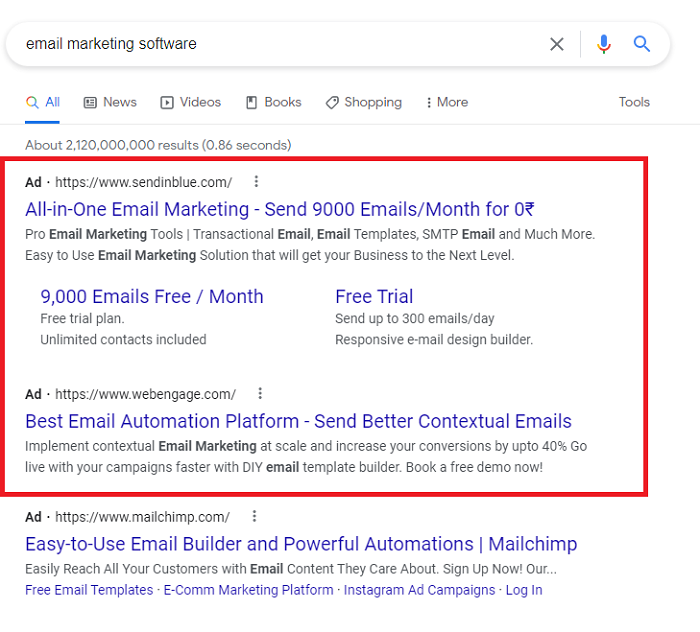
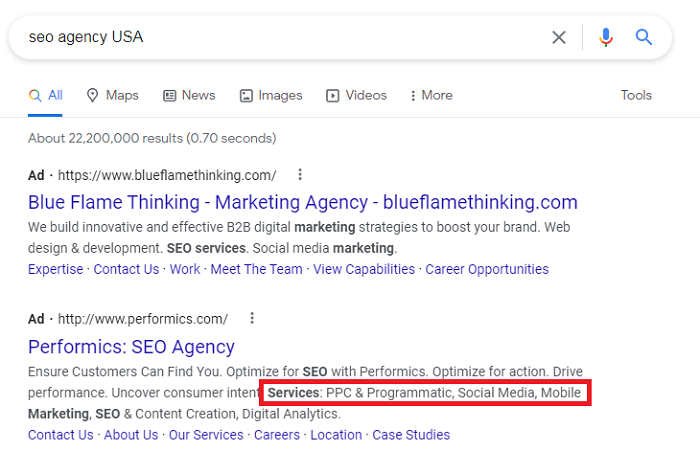
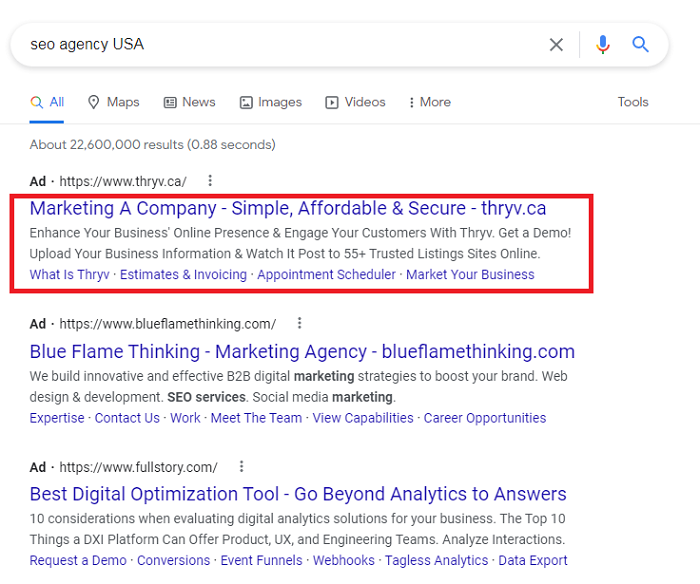
Here’s an example.

Google ad extensions can help add variety to your search result.

These two ad campaigns use different Google ad extensions to display varying results. One type might look more appealing than the other, depending on your target audience.

Why Should I Use Google Ad Extensions?

Are Google ad extensions all about making the search results look presentable? No. They have a lot more benefits to offer.

By using Google ad extensions, you get:

More Ad Space

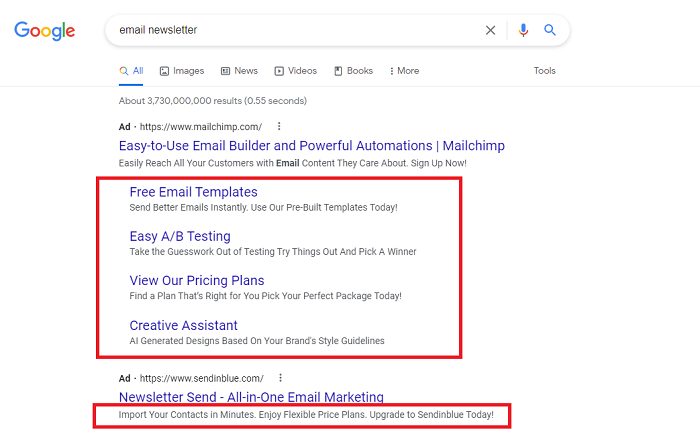
Google ad space is limited, but with Google ad extensions, you can claim more real estate by adding content and CTAs. See the example below.

Why Should I Use Google Ad Extensions - More Ad Space

Here, company 1 has a long, detailed ad that offers viewers more options, while company 2 only has a one-line ad with little detail. Which one seems more appealing?

High-Quality Leads

Now you have more ad space, which lets you offer more information to potential customers. This is ideal for filtering leads.

When a user is offered the chance to explore more information, those who are most interested in what your business offers are likely to respond to the ad. 50 percent of people who visit a site from paid are more likely to buy than those coming from an organic link.

So since extension ads tell users what to expect once they land on your site, they’re more likely to convert on post-click landing pages. Poor-quality leads will see don’t have what they need and will move on.

How to Set Up Google Ad Extensions

Google Ad extensions are easy to create. Follow the steps below:

  1. sign in to your Google ads account
  2. click on the Ads and Extensions tab on the left side of the page
  3. click on Extensions
  4. select the + button in the top left corner
  5. select the appropriate option from the dropdown menu

The Top 10 Google Ad Extensions

Google ad extensions are important if you want to improve conversions from paid campaigns.

For the best results, you need to make sure you use the right extensions for your business. You want to use the ones that raise your click-through rate, lower your cost per click, and increase your ROI.

Here are some of the best options to choose from:

1. Sitelinks

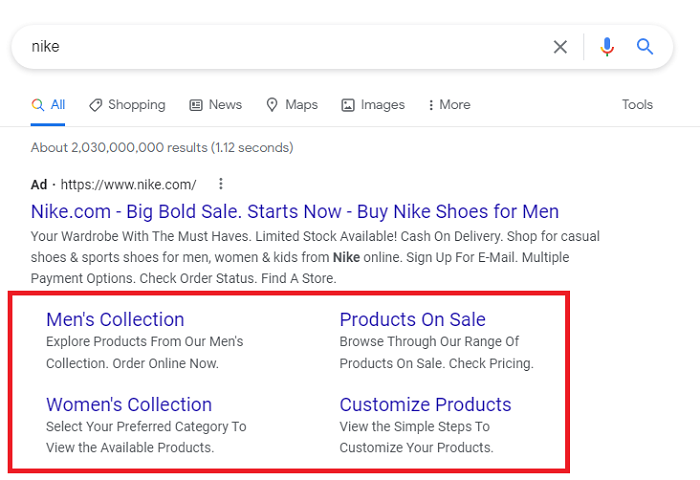
Want to add different links in your ad? Use the Sitelinks Google ad extension.

You can use these extensions to encourage users to choose where they’d like to go instead of just visiting your homepage or landing page when they click on your ad.

Sitelinks Google ad extension lets you add additional page links.

A report from WordStream shows advertisers have seen an 8 percent uplift in their click-through rate by using Sitelinks Google ad extension.

This might be because you are making it easier for users to find exactly what they’re looking for. You’re giving them answers even faster.

You can choose whether you want to add sitelinks at the account, campaign, and ad group level. I would recommend making them as connected to each campaign or ad group as much as you can but this might not be possible for smaller sites.

Setting up sitelinks is very straightforward but keep in mind you can only use four links at a time. Make sure they reflect your site, keep the link text short, and add descriptions so users can see what information will be learned.

Choose the the links that make the most sense for your account or campaign and make changes if needed depending on the results.

2. Structured Snippets

Featured snippets get 35.1 percent of all clicks, making them an ideal way to increase organic traffic.

Structured snippet Google ad extensions are useful to highlight your products, services, and popular features users may be looking for.

Structured snippet Google ad extensions can be useful for highlighting more information.

In this way, you can list a few different options the visitors will have if they click through to your website. Now, searchers will know who you are and what you offer before they even visit your website.

Not only does this help you provide value before the click, it can also help you disqualify poor leads from taking up your time and your budget. After all, you want to make sure you get the right clicks, not just a lot of them.

In order to set up some structured snippets for your ads, here are a few things to keep in mind:

  • you need a minimum of 3 values
  • each snippet has a 25 character limit
  • aim for less than 12 characters on mobile

3. Call Extensions

Want to skip the long, drawn-out discovery process and offer customers a way to call you directly?

Use the call Google ad extension. It’s a simple way to add a phone number and a direct calling option in your ad.

Call Google ad extension lets you add a phone number to your ad.

By adding that button, you tell customers that you’re just a phone call away, which can build trust and make you feel more approachable and accessible. If you’re business operates in different locations, you can use the call extension along with location extensions (more on this later) to drive even more qualified traffic.

Call extensions works best on mobile devices where users can just click on the number and call you right away, directly from the search engine page.

Today, 63 percent of organic searches take place from a mobile device so you should leverage that as much as you can. The easier you make the experience for customers, the more likely they are to buy from you.

4. Lead Form Extensions

61 percent of marketers say lead generation is their top challenge. Lead forms can make that a little easier.

Lead form Google ad extensions let you insert a form in the ad to collect important information.

As a business owner, you can use lead form extensions to collect information to gauge user interest, collect feedback, or answer customer questions.

The lead form Google ad extension makes it easier for customers to engage with your business and convert. They simply click on a link to a Google-hosted that already has their content information filled in.

You can use lead forms in your search, video, discovery, and display ad campaigns. Google stores collected leads for up to 30 days and allows you to download them as .CSV files.

You can use this data to better understand how customers engage with your business. You can also build marketing funnels using this information or build a remarketing list for a more targeted approach.

This way, you’re being more thoughtful of your marketing process to create more effective campaigns.

5. Location Extensions

Location Google ad extensions are fairly simple. They do what it says on the pack. They let you add your physical address in the ad and since 46 percent of all Google searches are for local information, this can drive powerful results.

This is ideal for businesses that rely on in-person visits for transactions. Location extensions make it easier for customers to find where you are and how to visit if they want.

There’s one more benefit. Location extensions even work for businesses that primarily operate online.

Including your address in paid ad campaigns is a great way to show the legitimacy of your business. People are more likely to trust your company if you are open and honest about who you are, where you operate, and how they can find you.

With the location Google ad extension, your business turns from something ambiguous to something personal and tangible. Not so surprisingly, people prefer businesses that seem real, which means being genuine will make them more likely to buy from you.

6. Affiliate Location Extensions

You can use affiliate location Google ad extensions if you are a retailer or manufacturer whose products are sold through retail outlets. They can help you reach customers when they’re searching for your products.

With the affiliate location extension, Google will display the nearest location where the product is sold, either as an address or on a map.

Studies show 76 percent of consumers who do a local search on their mobile phones visit a physical store in the next 24 hours. That is why it’s important to make sure customers have the right information (including the location) when they’re searching for your products.

Affiliate location Google ad extensions are easy to set up and make your business seem more available which makes it easier for customers to decide to buy from you.

7. Price Extensions

Think about it: What’s the first thing you want to know when you’re buying a new product?

The price!

In fact, 70 percent of shoppers say pricing is the most influential factor when they shop online.

Imagine how easy you can make it for your customers by adding the product prices directly in the ad. When people click or tap on a certain price in your ad, they will go straight to that product page on your site.

The best part?

Your products and services will be more likely to attract interested customers if you are transparent about your prices. In other words, it makes it less likely that someone will click on your ad, check your prices, and then decide not to convert because you were too expensive. This can help you drive more qualified leads and maximize your budget.

Not only that, but the price extension also provides detailed information about your offers and directs customers straight to the offer page.

The less hassle there is, the better the customer experience.

8. App Extensions

Do you offer an app for your business?

Nearly 50 percent of users use mobile phones for using the internet. Moreover, data shows 85 percent of mobile users prefer apps over mobile sites.

If you don’t yet have an app, you should seriously consider one if it makes sense for your business. Once your business has an app, you can can leverage the Google ad app extension to encourage users to download it.

Apps tend to provide a better user experience so you increase the likelihood that customers will spend more time using it and potentially find something that catches their interest.

In a way, adding the app Google ad extension could boost your conversions.

9. Promotion Extensions

Everyone loves a good bargain. In fact, 88 percent of shoppers say they use a coupon when shopping.

The promotion Google ad extension allows you to highlight any offers you might have. With this, you can display price, discount percentage, sales offers, and other data to attract customer attention.

What makes this better is the customer is taken directly to the offer without having to navigate through your website, saving much time and hassle.

Typically, the promotion Google ad extension is available year-round, but you increase the effectiveness of your campaign by using special holiday promotions like “Back-to-school”, “Black Friday” and “Christmas Special.”

These are easy to use and update while also providing you with a lot of data on your users to help you better understand their purchasing behaviors.

10. Callout Extensions

The callout Google ad extension is quite versatile—you can use it to say a variety of different things.

You can describe the kinds of products you offer, promote a special deal you currently have, or call out your specific target market. They are easy to customize and makes it even easier to highlight some of your key business offerings.

Callout Google ad extension lets you add a "callout" to attract customer attention.

To use these effectively, you want to make sure they are specific to your account and campaigns. Some generic ones such as “24/7 phone support” make sense at the account level whereas more specific ones like “get a free gift”, “free delivery”, or “pick-up-service” might make more sense at the campaign level.

The extension helps you get a sense of who your target market is and how you can quickly grab their attention. The more value and information you show them upfront won’t just get their attention, it will also get them to click to your site.

Google Ad Extensions Frequently Asked Questions

How many Google Ads extensions are there?

Currently, there are 10 main types of Google ad extensions. They can either be manual or automated. A manual extension requires a little setting up, while an automated extension is automatically added when Google Ads predicts it will enhance the performance of your ads.

Are Google Ads extensions free?

Extensions do not cost anything to add to your campaign. If someone calls you from your call extension or downloads your app from the app extension, you’ll be billed for a click.

Where do I get Google Ads extensions?

Google Ad extensions are available from your Google ads account. You can click on the Ads and Extensions tab on the left side of the page, then click Extensions. Select the + button in the top left corner and select the appropriate option from the drop-down menu.

Are Google Ads extensions really needed?

Google Ad extensions are not required to launch paid ad campaigns, but they can significantly improve its appearance and performance. They offer more ad real estate, let you display more information, and add links, phone numbers, and other relevant data to boost your conversions.

Conclusion: Google Ads Extensions

Google ad extensions can be a great way to maximize the efficiency of your ad campaigns.

While having so many choices can seem overwhelming at first, try starting with one. Track your performance and then experiment with others.

Remember, Google ad extensions are tools meant to help you reach your customers more effectively, so make sure you explore ways to make the process work best for you.

If it sounds too complicated, consider working with dedicated ad experts to help you get started.

Which Google ad extension will you try using today?


from Neil Patel's Digital Marketing Blog https://ift.tt/dKNxytB
via IFTTT

Wednesday, 2 March 2022

8 Conversion Rate Optimization (CRO) Best Practices You Need to Know

8 Conversion Rate Optimization Misconceptions (and How They’re Costing You Money)

We all dream creating a website or landing page will instantly increase our conversions, meet our sales goals, and are consistently growing our traffic.

The problem? It’s not always true.

In fact, the average conversion rate for a website is just 2.35 percent.

There’s a good chance your website isn’t converting—and that’s okay.

Instead of getting overwhelmed by your website’s less-than-stellar performance, you can take actionable steps to improve both your conversions and overall success.

Interested?

In this post, we unpack how to optimize your website for conversion success. Read on to learn more.

What Is Conversion Rate Optimization, and Why Does it Matter?

CRO stands for conversion rate optimization and refers to the improvement of actions across your site that should result in—you guessed it—increased conversions.

While the most obvious conversion is a financial transaction, the simple act of moving a visitor to the next step of the sales funnel or acquiring visitor contact information also qualifies as a conversion. The true definition rests in what you consider to be a valuable action.

In short, CRO can refer to improving the likelihood that your audience will complete any action you want them to take.

Whether you want more get-to-know-you form fills or more purchases from your store, you can assess your current conversion rates to gain a better understanding of performance.

From there, you can take steps to optimize these processes, ensuring that your site visitors are set up to take your desired next step.

8 CRO Best Practices to Drive Growth

Optimization of anything is challenging. From keywords to conversions, it may feel overwhelming to start improving your current standing and site.

To make this process easier, we break down eight CRO best practices that can skyrocket your lackluster conversion figures.

1. Make Changes Based on Data, Not Gut Feelings

While it may be tempting to simply assess site performance through your own internal lens, you’re going to want to leave it to the experts to highlight what isn’t working. Even more, make sure your data is high quality—according to Gartner, poor-quality data costs businesses $15 million a year.

To find high-quality data, rely on insights from services like Google Analytics to give you an actionable, real-time view of behavior on your site.

Let’s look at a few metrics you can track in Google Analytics (and how to find them in your account) so you can identify opportunities for optimization.

Bounce Rate

Your bounce rate can tell you a lot about your website. By determining when, where, and why visitors are departing from your site, you can optimize existing content and assets to convince them to stay rather than depart.

A high bounce rate, meaning above 56 percent, indicates there might be something you need to look at. A great bounce rate is between 26 and 40 percent, according to Semrush.

By gaining a historic view of your conversions, you can determine whether a specific conversion was ever successful, allowing you to recreate it immediately.

To assess your bounce rate as a whole and per page, simply visit your Google Analytics console and select Behavior > Site Content > All Pages.

What do you do with this data? Take a look at the top pages, and aim to make the content better by:

  • answering the main question right away
  • testing new headlines
  • adding new keywords
  • including more images
  • covering more points to make it longer
  • adding step-by-step instructions
  • adding videos

Exit Pages

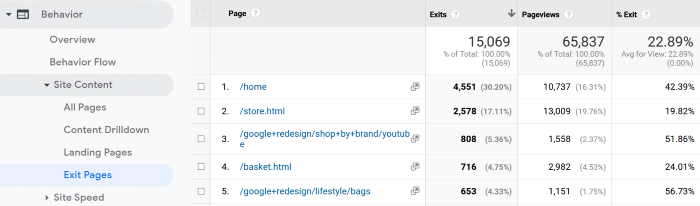
Exit pages refer to the last page visitors land on before departing. By identifying these pages, you can determine whether a broken experience or another element exists that may be impacting a visitor’s decision to leave.

To identify which pages are your exit pages, simply access your Google Analytics console and select Behavior > Site Pages > Exit Pages.

Conversion Rate Optimization Best Practices - Google Analytics

Once you have that data, aim to make the content on those pages better following the steps in the previous section. Consider adding more internal links and a CTA to keep them on your website.

Cost Per Conversion

According to WordStream, the average cost per conversion is 4.4 percent for search ads and 0.57 percent for display ads. Do your conversions meet the benchmark?

If you’ve enabled conversion tracking in your Google Analytics account, you can track how much each conversion actually costs.

Through this metric, you can determine if your paid marketing efforts are actually worth the spend. If they’re not, you can realign your goals around what this metric indicates.

If you’ve set up conversion tracking, you can find this metric under your conversions column.

If your conversion rate is high, you’ll need to review where your traffic is coming from and whether you’re covering the entire marketing funnel.

2. Check Out Your Competition, but Don’t Copy

While your competitors may, at times, feel like your worst enemies, they can also be an incredible resource.

To get a look into what’s convincing your industry audience to convert, explore the sites of your top competitors.

While you don’t want to replicate their exact strategy, you do want to gain a better understanding of why they’re successful.

How to Assess Your Competitors’ Success

After you’ve identified a few factors that are driving results for your competition, assess those measures through your brand lens and apply your own filter.

From there, you can enact changes on your own site that work from your brand.

Here are three areas to audit to learn more about your competitors’ success: content, SEO, and social media.

1. Content Audit

The average company spends 25 to 30 percent of its budget on content marketing. Are your results paying off? The best way to find out is to run a content audit on your competitors.

Start by running a content audit on their blog to see what information they’re sharing with their audience. From there, you can compare their content strategy against your own, replicating successes and identifying any areas in which content gaps exist.

Here’s how to perform content audit:

  1. Create a list of all your assets and add them to a spreadsheet
  2. Analyze your spreadsheet to look for duplicate or outdated content
  3. Make a list of your competitor’s content
  4. Compare the two. Do you have gaps? Are you missing missing key topics?

2. SEO Audit

SEO has a high ROI—according to Moz, the average return on investment in SEO for an e-commerce company is around $2.75 for every dollar spent.

If you’re not seeing that ROI, it’s time to see what your competitors are up to.

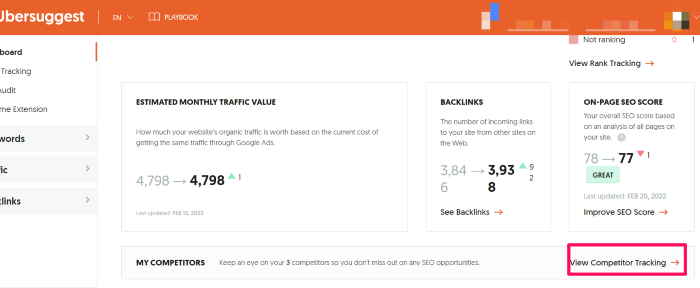
There are many tools available that allow you to dig into your competitors’ keywords and strategy. To gain a more informed view of how their SEO strategy is performing, look to tools like Ubersuggest to help you plan your own reactive strategy.

The free version of this tool is a great way to kickstart your SEO audit.

SEo audit for competitors

3. Social Media Audit

By 2025, more than 4.41 billion people will use social media worldwide, making it an ideal place to find and talk to your customers and prospects.

While there are many expensive social media tracking tools, you don’t need fancy tools when analyzing your competitors to identify trends.

Follow your competition on the sites they are active, noting what performs well and what doesn’t. By gaining insights from their audience behavior, you can recreate similar engagement for your own.

  1. Create a spreadsheet and add a tab for your top three competitors.
  2. List all the social media accounts each competitor has.
  3. Make note of how often they post on each account.
  4. Make note of the tone and type of content.
  5. Find 5 to 10 posts that have the most engagement for each account.
  6. Why do you think they work? Is it the tone, type of content, when it was posted, etc.?

Once you know what works for your competitors, try applying those same strategies to your social media marketing plan. You might also find topics to use for blog posts.

3. Define Clear Goals

A study at Dominican University found that setting goals makes it 42 percent more likely that you’ll actually reach them. So setting goals isn’t just a random strategy—it can improve your performance.

Before you start making changes to your existing site, you need to set specific, measurable goals that allow you to track your progress clearly.

For example, your goal shouldn’t simply be to drive more traffic. Rather, you should aim to increase your traffic by a specific amount in a specific timeframe with a certain strategy.

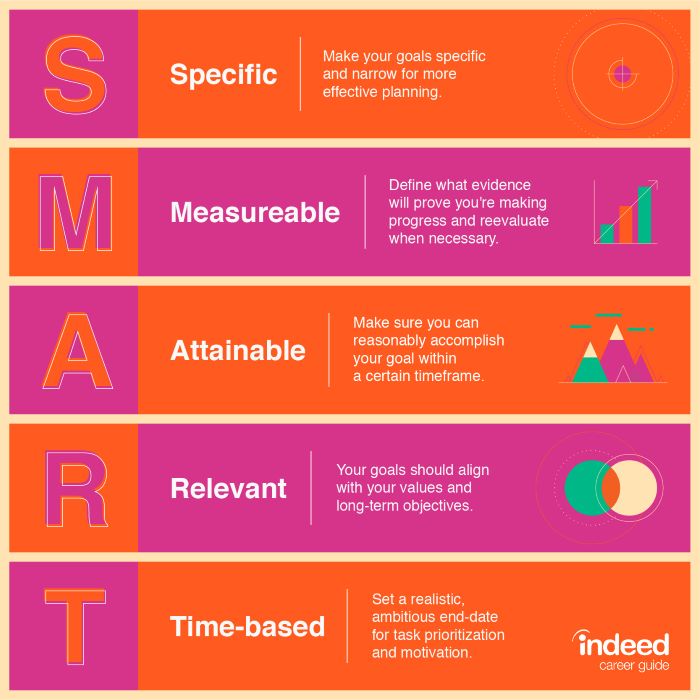
If you’re not familiar with building sustainable, measurable goals, use the SMART goals system to create benchmarks you can actually track.

SMART is an acronym that stands for specific, measurable, achievable, relevant, and time-based.

Conversion Rate Optimization Best Practices - SMART Goals

This process will help you create goals that are tangible, rather than ephemeral.

I also suggest creating short and long-term goals. What is your main company goal? To drive long-term sales? Get more sign-ups? Make a SMART plan to reach those goals.

Then, think about the short term. What goals do you want to reach in the next six months? A year? Make detailed plans to reach those goals as well.

4. Get to Know Your Users

According to HubSpot, 42 percent of companies don’t listen to their customers. Do you?

While learning about user behavior is useful, understanding your users is even more valuable.

If you have a vague idea of who visits your site, it’s time to dive deeper. By developing buyer personas that align with your different visitors, you can better optimize your content and on-site experience to better suit the needs of your unique audience.

How do you build buyer personas? Better yet, what are they?

How to Build Buyer Personas

Buyer personas are profiles that your consumers fit into. While there are many ways to create these identities, some simple strategies include:

  • exploring customer reviews
  • conducting polls or surveys through your various outreach channels
  • looking at existing consumer data
  • conducting interviews and conversations with consumers and prospects

By collecting data from these four strategies, you can build a profile for your customers and increase your knowledge of the needs, wants, hopes, and desires for your product.

5. Track CRO Strategies With Both A/B and Multivariate Testing

When testing elements of your site, don’t limit yourself to one kind of test. In fact, both A/B and multivariate tests can help you make data-driven decisions but each has very different uses. When combined, you can test a variety of different elements across your site.

A/B

More than 77 percent of businesses run A/B testing on their website. If you’re not one of them, you could be leaving conversions on the table.

Commonly known as a split test, A/B testing allows you to directly compare different elements on two pages. This test is great for calls to action (CTAs), headlines, copy, and images and can yield infinitely helpful on-page results.

Multivariate

This test can be used to determine how variations across many page sections or elements would perform if combined. Multivariate testing indicates which elements will have the largest impact on audience engagement and can help you optimize one-off page elements.

By using both testing methods, you can gain a better understanding of which optimization efforts will be successful.

6. Get Organized Before You Start Testing

After you’ve identified on-page elements you want to test, ensure that you have the proper tools on hand.

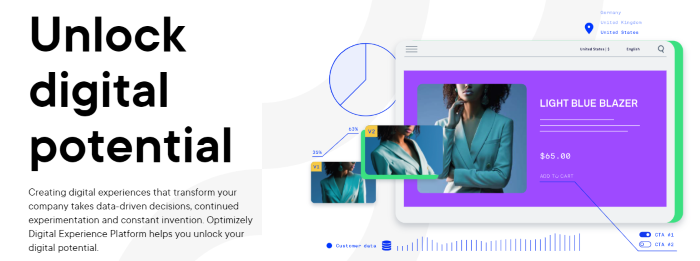
First, you need a tool that can help you run your test, like Optimizely.

Conversion Rate Optimization Best Practices - Optimizely Example for Testing

Once you have your results, you might think the test is over but you also need to analyze those results. Optimizely has an integration with Google Analytics that can make this process easier.

Once you have assessed the results and looked at the data from Google’s console, you’ll have a much better understanding of what works and doesn’t for your site.

Once you see what does work, you can begin making widescale changes across your site based on the winning test.

7. CRO Testing Isn’t One and Done

While it may be tempting to simply run your test once and call it a day, you must run your tests multiple times to make sure the results are accurate.

When it comes to the number of tests, follow the three tenets below:

  1. Don’t conclude your test until you’ve reached the minimum sample size that will yield statistical significance.
  2. Run your test for a complete business cycle.
  3. Don’t stop your tests mid-cycle.

By adhering to these three principles, you can gain an accurate view of what you’re testing, rather than an incomplete picture.

8. CRO Takes Time: Be Patient

Much like everything else in digital marketing, CRO doesn’t happen overnight. Ideally, you want to run your tests for at least two weeks to ensure you have enough data to make a truly informed decision.

If you have lower site traffic, you may want to run your tests for even longer than two weeks.

In testing, like in everything else, data is knowledge, and knowledge is power.

CRO Best Practices Frequently Asked Questions

What are the benefits of CRO?

While there are countless benefits of CRO, the four most impactful include:

  • increased understanding of consumers and prospects
  • improved SEO
  • increased customer lifetime value
  • reduced spend on unsuccessful paid efforts

What are the best CRO tools?

There are a lot of CRO tools available to you, both free and paid. Some of our favorites include Optimizely, Semrush, and Google Analytics.

How do I create a CRO plan?

You can create a CRO plan by asking yourself the following questions about your site:

  • What drives your audience to visit your site?
  • What makes your audience exit your site?
  • What makes your audience convert?

By answering these three questions, you can build a plan that optimizes for this known behavior.

What elements should I test for CRO?

While what you test for CRO should be determined by your CRO plan findings, some common items for optimization include:

  • CTA copy
  • CTA color
  • CTA placement
  • inclusion of negative words
  • headline options

Conclusion: CRO Best Practices

Even after you’ve just finished optimizing areas of your site, making long-term improvements is an ongoing process.

Keep an eye on how those optimizations continue to perform. More often than not, you’ll need to update your optimizations as your audience grows. You should also take care to not over-optimize your site.

As you continue to conduct tests, look for lessons beyond simply looking at winners and losers. One version of a landing page may convert far less, for example, but you may find those converters have a higher lifetime value.

What’s the most interesting thing you’ve learned about your audience through CRO?


from Neil Patel's Digital Marketing Blog https://ift.tt/2Ip1tKX
via IFTTT

Tuesday, 1 March 2022

Best Form Plugin for WordPress

Gravity Forms homepage for Best Form Plugin for WordPress

Disclosure: This content is reader-supported, which means if you click on some of our links that we may earn a commission.

What do you want people to do when they visit your site? Contact you? Sign up for your newsletter? Fill out a survey?

Make it easy for them with an eye-catching, intuitive form. To do that, you need a WordPress form plugin that lets you build one.

Make a lasting connection with online visitors. Get them on an email list and give them a reason to come back.

If you have been on my site before, you’ll know that I use WordPress form plugins. They are a big part of how I’ve grown this blog to millions of readers each month.

Here are my reviews of the top seven form plugins you can start using today. After my recommendations, you’ll find a short guide that will help you find the best one for you.

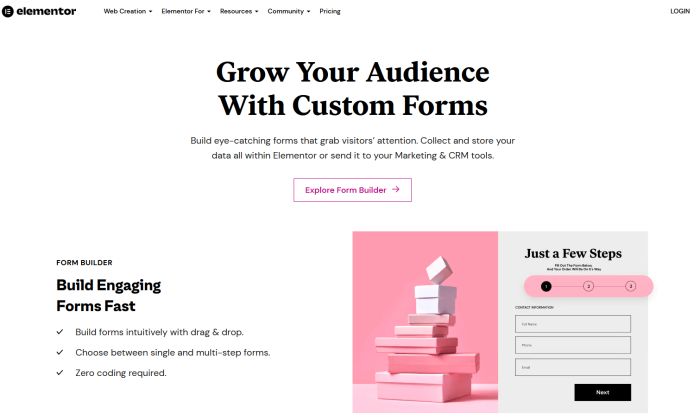
#1 – Elementor Review — The Best for Full Customization & Integration

You might have heard of Elementor before. That’s probably because it’s one of the most powerful, versatile, and effective WordPress plugins in existence.

With Elementor Pro, you get its flagship tool (a page editor that is a massive improvement on WordPress’ native editor), and hundreds of site kits, templates, and widgets.

That’s not just a plugin, that’s the WordPress tool equivalent of a Swiss Army knife.

Among the widgets you can add to your site with Elementor are custom forms. You get full control of what information you want them to capture and how they look, with no need for coding whatsoever.

From a contact form or straightforward lead gathering device to customer satisfaction surveys, account registrations, and event RSVPs, you’re unlimited in what you can create in Elementor.

With Elementor’s gorgeous and user-friendly editor, it’ll only take you minutes to set the fields you want, match the form to your branding, and set actions for what happens after form submission.

Make a multi-step form to capture and prequalify a lead that sends them an email after submission and enters their information automatically into your CRM in minutes. And that’s just one example.

Elementor’s forms sync easily with leading CRMs and email marketing platforms, as well as other WordPress plugins like Yoast and platforms like Slack, Discord, and YouTube.

Plus, anti-spam protection and reCAPTCHA are built-in to prevent your forms from getting overrun by bots and fake sign-ups.

And, really, that’s just scraping the surface of what you can do with forms in Elementor.

Now, for a powerful tool like this, you may think you’ll have to pay a king’s ransom. After all, you can’t get Elementor’s forms without signing up for the whole Elementor Pro suite.

But, wouldn’t you believe it, Elementor Pro for a single website is only $49 per year. That’s cheaper than a few options on this list that only do forms.

Need Elementor for more than one website? You can get it licensed for three sites for $99 per year or get up to 25 sites covered for $199 per year.

Elementor is one of the most potent and valuable WordPress tools you can have on your website. Take advantage of all Elementor has to offer by getting started today.

#2 – Gravity Forms Review — The Best for Advanced Users

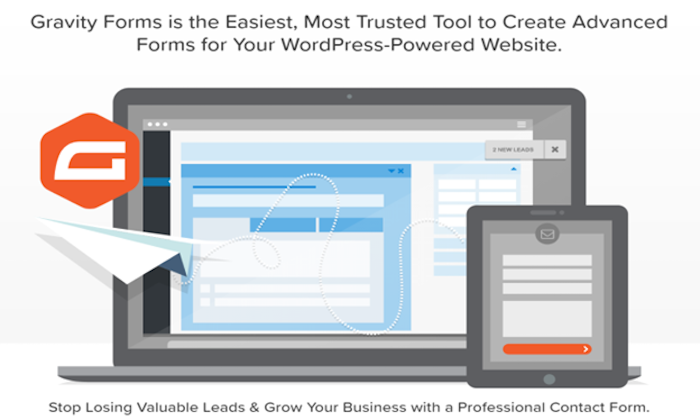
Gravity Forms homepage for Best Form Plugin for WordPress

Gravity Forms goes beyond your typical contact form. It has tons of integrations and add-ons for a smart, multipurpose form.

It doesn’t have a free version, but the add-ons you get make for such a comprehensive and customizable form plugin that it’s worth it. If you’re a developer who wants to make your form unique, Gravity Forms can help. The plugin is scalable for your business, and it offers excellent security for your site.

You can choose from three packages:

  • Basic—$59 per year
  • Pro—$159 per year
  • Elite—$259 per year

Basic gives you unlimited forms and entries for one site. With multipage forms, conditional logic, and file uploads, visitors have more options than your typical single-page form. Automatic updates and standard support give you the resources you need to keep your forms running.

The real star of Gravity Forms is its add-on options. Even with the Basic package, you get plenty, including Mailchimp, ActiveCampaign, AWeber, HubSpot, and many more.

Pro upgrades you to three sites and gives you all the features of Basic. When you go Pro, you’re basically paying for the add-ons. But with several payment, CRM, and other management add-ons, you might find they make your life easier. 

The top tier, Elite, gives you unlimited sites and all Pro features. With Elite, you can make other types of forms, like surveys, polls, and quizzes. You can also make filling out your forms more convenient with signatures, user registration, and partial entries. Plus, with priority support, you get issues resolved fast. Learn more at Gravity Forms.

#3 – Jetpack Forms Review — The Best for Form Security

Jetpack Forms homepage for Best Form Plugin for WordPress

Jetpack is more of a suite than a form-specific plugin, but it still has plenty of form features. You might not find all the same ones as you would in, say, Formidable Forms, but it has enough if you don’t need anything fancy.

What Jetpack lacks in frills, it makes up for in protection. It blocks spam, offers extra security, and even comes with marketing tools.

To use forms, you must enable Jetpack Contact Form in the suite settings. There, you’ll have access to features like contact, newsletter, registration, feedback, RSVP, and sign-up forms. You can also build your own form from scratch.

You can specify who receives messages from the forms. With customization features and fields, you can create a unique form with a date picker, checkboxes, radio, and select fields. The block editor also lets you drag and drop or add non-form blocks within the form block.

Jetpack has limited integrations, but you can get newsletters and CRM. There’s a free version of the plugin, along with three paid packages:

  • Backup Daily—$7.95 per month
  • Security Daily—$19.95 per month
  • Complete—$79.95 per month

The form plugin comes with all packages, but if you want more security, consider upgrading. Backup Daily offers automated daily backups, one-click restores, and unlimited site storage so that you won’t lose anything.

Security Daily includes automated daily scans, anti-spam, and unlimited video hosting on your site. The Complete package comes with real-time automated scans and off-site backup. To make things easier to maintain, you also get a CRM, site search, and more marketing and design tools.

#4 – WPForms Review — The Best for Flexibility and Power

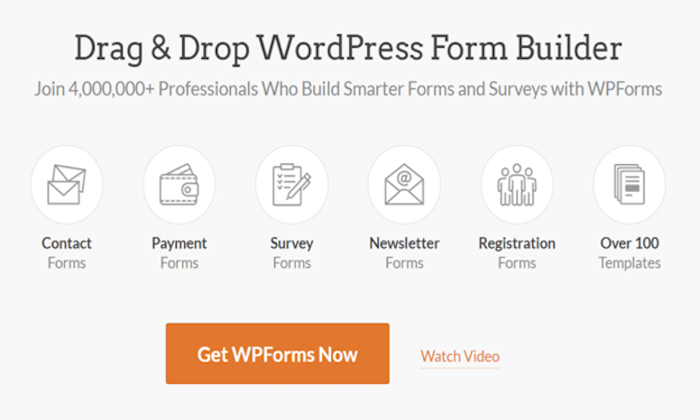
WPForms homepage for Best Form Plugin for WordPress

WPForms is one of the best WordPress form plugins you can get. Its intuitive interface makes it ideal for both beginners and more experienced users. You don’t have to worry about code or complexities.

It’s one of the most powerful form builders thanks to its functionality, multi-page forms, customizability, and the sheer number of forms you can create. Its comprehensive features include everything from file upload capability to conditional logic.

You can make form submission simple with signatures, form abandonment, and user registration. With survey and poll add-ons, you can create tons of different forms beyond your basic contact form. Plus, Conversational Forms help you connect with visitors.

When it comes to communication, Constant Contact integration and instant notifications mean you and your team never miss a beat. Not to mention, the anti-spam honeypots make sure you only get responses from real people who are interested in what you have to offer.

You can choose from five packages:

  • Lite—Free
  • Basic—$39.50 per year
  • Plus—$99.50 per year
  • Pro—$199.50 per year
  • Elite—$299.50 per year

WPForms Lite has three templates and 10 form fields. Beyond that, the drag-and-drop design, button customization, and Gutenberg compatibility give you all the design tools you need.

The Basic package gives you unlimited forms and entries, plus advanced fields, form templates, and multi-page forms. It comes with one year of support, downloads, and updates for one site.

Plus upgrades the Basic features with more marketing features. You get newsletter forms, Mailchimp, AWeber, GetResponse, Campaign Monitor, Sendinblue, and Drip for three sites. With this package, you’ll have no problem keeping track of your forms.

With Pro, you get everything Plus has to offer, along with even more marketing integrations. With form abandonment, conversational forms, offline forms, and a form locker, visitors won’t have to worry about losing their place. That means more customers for you.

Pro also allows PayPal and Stripe integrations for easy payments. You get priority support and use of these features across five sites.

Elite includes all Pro features but with even more marketing capability. With ActiveCampaign, Salesforce, Authorize.net, and Webhooks across unlimited sites, you have the tools you need to manage your forms. Elite also gives you client management features and premium support in case anything goes wrong.

#5 – Formidable Forms Review — The Best for Complex Form Creation

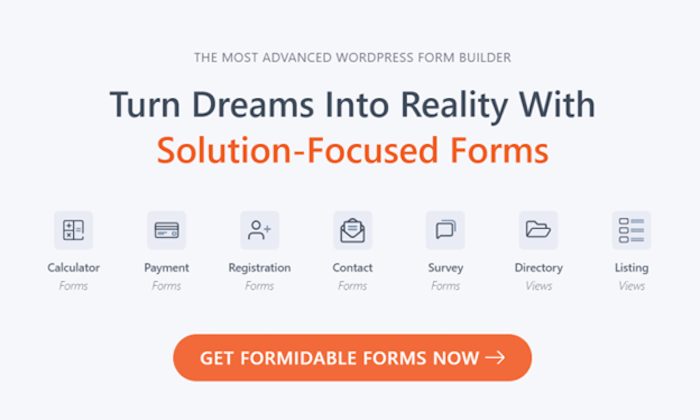
Formidable Forms homepage for Best Form Plugin for WordPress

Formidable Forms lets you create forms as complex or as simple as you want. It has more advanced features than any other WordPress form plugin on this list.

Formidable Forms works best if you’re an advanced developer. You’ll get more out of it if you know how to use all of its features, and it’s not as beginner-friendly as other form plugins.

With tons of integrations, including WooCommerce, you’ll find plenty of use for it, whether you need an easy contact form or a complex survey.

You can get Formidable Forms in four packages:

  • Basic—$74 per year
  • Plus—$149 per year
  • Business—$299 per year
  • Elite—$599 per year

Basic comes with unlimited forms and entries, along with advanced and multipage forms. File upload and review before submit features give visitors what they need for efficient form completion. Automatic updates keep your forms current for you, and you get a year of support for one site.

Plus upgrades you to three sites with add-ons like Mailchimp, AWeber, MailPoet newsletters, and Bootstrap form styling and modals. Formidable Views, reviews, and comments also make it easy for you to see what people think of your site and who uses your forms. You can even create surveys and polls beyond your basic forms.

The Business package adds calculators, user registration, and signatures. You get payment add-ons, Formidable Forms API, date picker options, and quiz maker. With marketing add-ons like Campaign Monitor and GetResponse, you have even more ways to improve how you use form responses. You can also use Polylang to make your site accessible in multiple languages across up to 15 sites.

Elite is where the WooCommerce integration comes in. You can also take advantage of marketing tools like ActiveCampaign, Salesforce, and Hubspot.

With Elite’s access to all form templates, unlimited sites, and all Business package features, you’ll have no shortage of ways to customize your forms and how they work for you. And priority support means you can keep things up and running without the wait.

#6 Ninja Forms Review — The Best for Quick Solutions

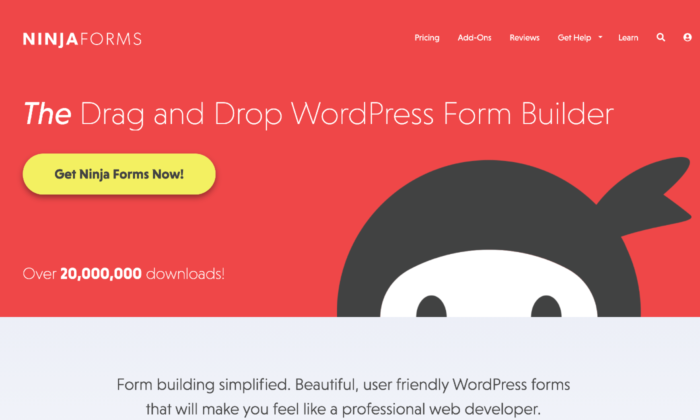
Ninja Forms homepage for Best Form Plugin for WordPress

Ninja Forms has your solution for quality forms with minimal effort. Its drag and drop setup means you don’t have to be tech-savvy to upgrade your forms.

The plugin’s beginner-friendly interface includes pre-built templates, dedicated fields, customization options, and spam management. These features make it easy for you to add a form fast when you need one.

You have three paid package options:

  • Personal—$99.50 per year
  • Professional—$199.50 per year
  • Agency—$249.50 per year

Personal allows you one site with priority support. You can use form building features like layout and styles, conditional logic, file uploads, and multipage forms. Marketing add-ons like Mailchimp, Constant Contact, Campaign Monitor, and ConvertKit help you keep track of your marketing campaign and its success rate. You also get 20% off all future add-ons you buy.

When you upgrade to Professional, you can use the plugin on 20 sites. You get more payment integrations, like PayPal Express and Stripe to make customer purchases convenient.

When it comes to forms, it makes for low effort completion with user management login, as well as registration, update profile, and post creation forms. Users can even save their form progress. The add-on discount also doubles to 40% for any you buy after purchasing this package.

Agency comes with unlimited sites and all form add-ons, including those they release in the future. You have access to all CRM integrations, including Salesforce, Zoho, Insightly, HubSpot, and more, plus SMS and Slack notifications. Connect your forms to workflow management software like Trello and Help Scout, and use advanced analytics and email marketing tools.

If you only want some of these features, Ninja Forms offers an a la carte option. You can choose the features you need, and the cost is from $29 to $129 a year for up to 20 sites.

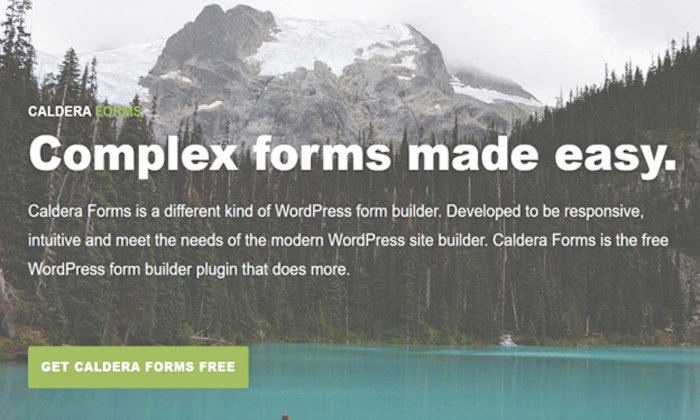
#7 Caldera Forms Review — The Best for Free Features

Caldera Forms homepage for Best Form Plugin for WordPress

Like most form plugins for WordPress, Caldera Forms has plenty of paid options. The difference here is that it gives you access to more free features than most others.

You get templates and compatibility with almost every WordPress theme available. It has a drag-and-drop builder, as well as a freeform builder for better customization.

You can get free and premium add-ons for payments, sales, and email marketing. It also has spam prevention and notifications, so you always know what’s going on with your forms.

Unfortunately, even the paid version doesn’t have many advanced features. If you’re a developer, you might want something you can play with more.

If Caldera’s simplicity appeals to you, you can choose from three packages:

  • Toolbelt—$49.50 per year
  • Toolbox—$99.50 per year
  • Toolchest—$249.50 per year

Toolbelt comes with plenty of marketing and payment integrations, including PayPal, ConvertKit, ActiveCampaign, Mailchimp, and AWeber. You also have options like entry limiter, geolocation, conditional fail, and Slack to help you get all the information you need from your forms. Best of all, Toolbelt gives you unlimited sites, a rare feature for the cheapest payment options.

Toolbox enhances your forms with easy queries, YouTube signup forms, custom fields, and email verification. You can also learn more about your forms’ success with Google Analytics, and send responses where they need to go with Connected Forms.

Toolchest allows you to add members and use premium EDD integration. With Divi Styler, you can take form design to the next level. Braintree, Dwolla, and Nexmo integrations help you collect payments easily, interact with data, and connect your forms where you need them.

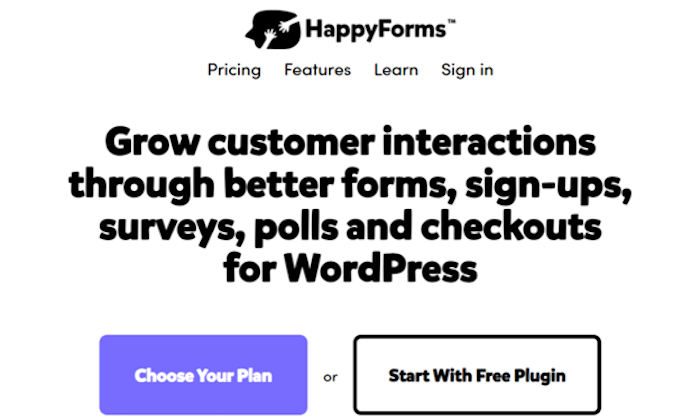
#8 HappyForms Review —The Best for Lightweight Forms

HappyForms homepage for Best Form Plugin for WordPress

HappyForms is a no-frills form plugin built into the WordPress Customizer. Its lightweight code keeps up performance on your site, and everything about it is made to be user-friendly.

With a drag and drop form builder, it’s easy to include in your site design. It also comes with a Google reCaptcha spam prevention feature. As a Gutenberg-ready plugin, you don’t have to modify anything to start building your forms.

HappyForms doesn’t have many advanced features. Still, if you know anything about tech, you know that you need a high-quality foundation. That’s what HappyForms offers.

You can choose from three packages:

  • Starter—$49 per year
  • Business—$99 per year
  • Professional—$249 per year

Starter lets you customize your forms on one site with conditional logic, multipage forms, time and date scheduling, and live polls. You can even tailor submission details with a preview before submission, redirect after submission, and a submission block list.

With import and export tools along with file upload, you have everything you need for a solid starter form. Plus, this tier gives you 20% off future renewals.

Business gives you a year of updates for five sites and all Starter features. The main difference between the two levels is that Business gives you a ton of integrations. You get Google Analytics, Mailchimp, SendFox, PayPal, Constant Contact, Zapier, ActiveCampaign, and more.

With Professional, you get a year of updates for unlimited sites but no extra features beyond what Business offers. Essentially, you’re just paying to use those features on more sites.

What I Looked at to Find the Best WordPress Form Plugin

Before you buy, you want to know that your WordPress form plugin will serve your business well.

Some plugins offer advanced features but focus instead on what your company actually needs. Look for these features and criteria in your plugins to help you decide which one is right for you. 

Customizability

Whether you need multiple tools or branding customizability, it helps to know how much you can change your forms. Fully customizable forms give you more options and better ways to make them your own. 

Look for options like how many fields you can add, dropdowns, and design features. The level of customizability determines how the form works for your site.

Visual Builder

A visual drag-and-drop builder works well for beginners. It also makes adding a form to your site more efficient.

That said, if you have experience with creating websites and incorporating different elements, a freeform builder gives you more freedom.

Spam Protection

You want spam protection for you and your visitors. It makes people feel safe and keeps both their and your information secure. Spam protection also shows that the plugin you get offers more than the bare minimum.

Responsiveness

Your form should work on all types of devices. If it doesn’t work on mobile, that will deter people. According to Sweor, 57% of people won’t recommend a website that doesn’t work on mobile devices. Test your form and make sure visitors can fill it out just as easily on their phones as on desktop. 

Conditional Logic

Conditional logic gives your form an “if this, then that” logic system. These systems streamline the submission process and help sort responses where they need to go within your company.

Conditional logic allows customers to skip parts of the form that don’t apply to them. The form recognizes their answers to certain questions and then hides or shows applicable questions.

Communication System

A communication system within your plugin keeps your system organized. It tells the right people in your company when they receive a new submission. With a streamlined system, it becomes easier for the appropriate people to handle specific tasks.

Conclusion

Your WordPress form plugin should make it easy for customers to fill out forms and for you to get the responses you need. Choose something that has all the right features from the start.

A good form plugin for WordPress should offer more than a simple contact form. Look for spam protection, a high-quality builder, customizability, and make sure it works on all devices. When you have a form that reaches more visitors, you have a higher chance of turning them into buyers.

To recap, here are the top WordPress form plugins:

  1. Elementor — Best for full customization and integration
  2. Gravity Forms — Best for advanced users
  3. Jetpack Forms — Best for form security
  4. WPForms — Best for flexibility and power
  5. Formidable Forms — Best for complex form creation
  6. Ninja Forms — Best for quick solutions
  7. Caldera Forms — Best for free features
  8. HappyForms — Best for lightweight forms


from Neil Patel's Digital Marketing Blog https://ift.tt/8ovm6K1
via IFTTT